
How to Install APK Files on Android (Samsung, Vivo & OPPO)
Installing an APK on Android lets you install an app downloaded outside Google Play. Before the installation starts, Android may ask you to enable Install unknown apps or Allow from this source for the browser or file manager opening the APK. This guide explains how to install an APK on Android and where to find the required permission on different phones. We cover Samsung Galaxy A33 5G, Samsung Galaxy A04, Vivo V2027, OPPO A3, and itel A70, with device-specific steps and screenshots.
How to Install an APK on Android
You can open a downloaded APK through Files by Google, your phone’s file manager, or the browser used to download it.
- Download the APK file you want to install.
- Open Files by Google or your phone’s file manager and locate the downloaded Modified version or APK.
- Tap the APK file to start the installation.
- If you haven’t enabled APK installation for the file manager before, Android will show this message:
“For your security, your phone currently isn’t allowed to install unknown apps from this source. You can change this in Settings.”
- Tap Settings and enable Allow from this source.
- Once you enable it, Android automatically starts installing the APK file you selected. You do not need to go back and tap the file again.
- After installation is complete, tap Open to launch the app or Done to close the installer.
Which App Should You Allow to Install Unknown Apps?
The Allow from this source permission applies to the app being used to open the APK. You do not need to enable it for every app listed under Install unknown apps. For example, if you open an APK through Files by Google, enable the permission for Files by Google. If you download an APK with Chrome and open it directly from the browser, Chrome needs the permission. Enabling this permission does not automatically install APK files. You still have to confirm the installation by tapping Install.
How to Install an APK on Android Vivo Mobile
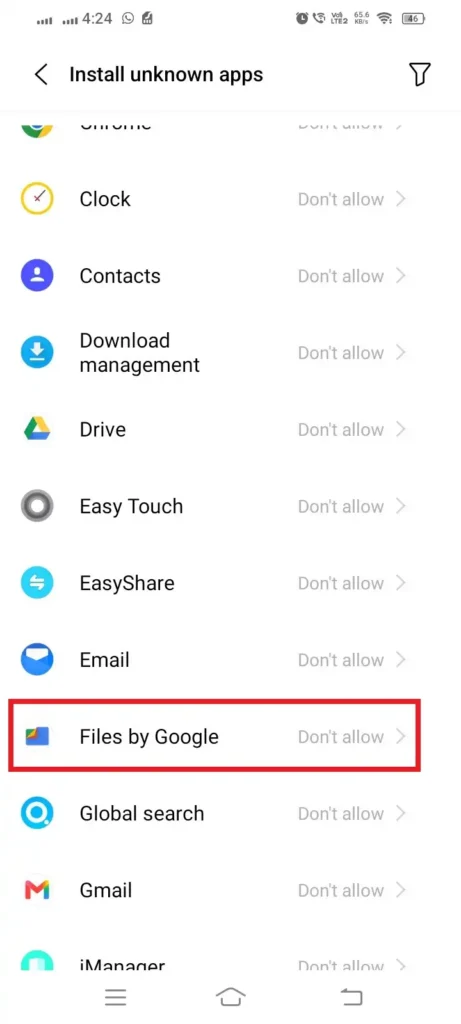
On the Vivo V2027, the manual path for allowing Files by Google to install APK files is:
Settings → Apps & permissions → Permission management → Install unknown apps → Files by Google
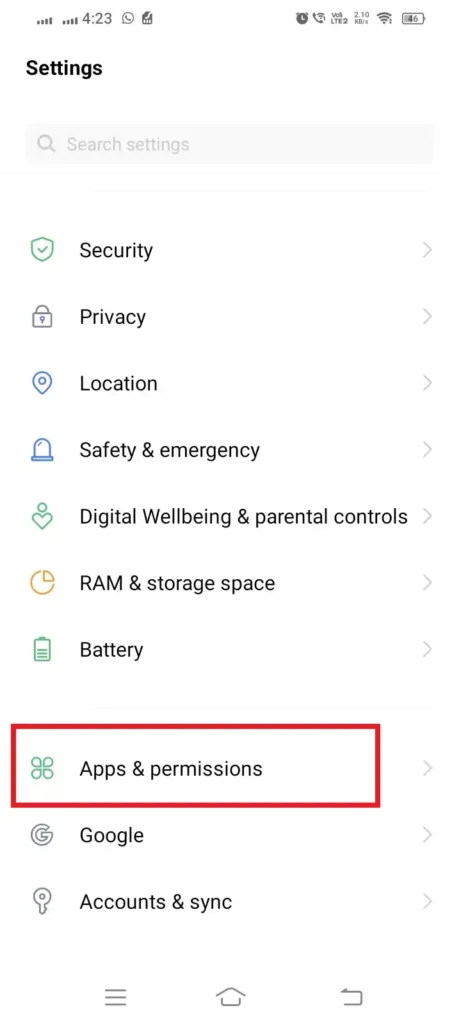
Step 1: Open Apps & Permissions
Open Settings and tap Apps & permissions.
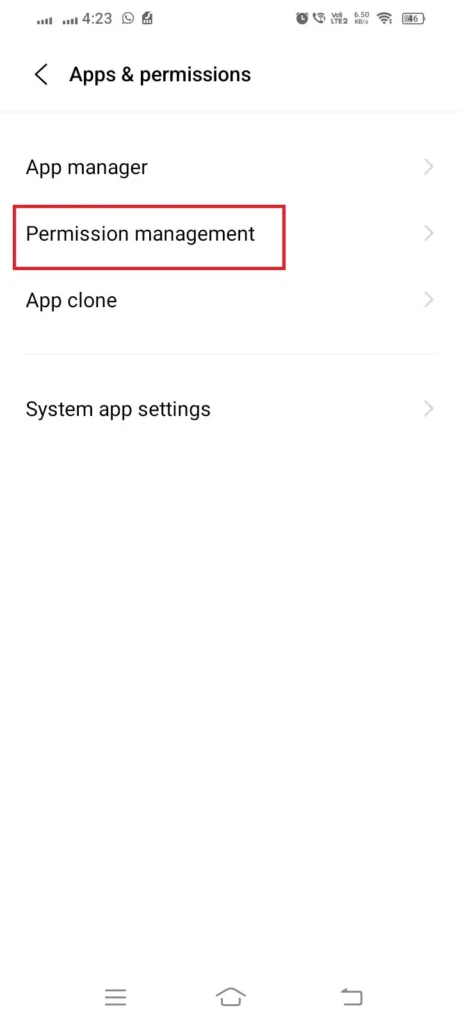
Step 2: Open Permission Management
Tap Permission management.
Step 3: Select Install Unknown Apps
Scroll down and tap Install unknown apps.
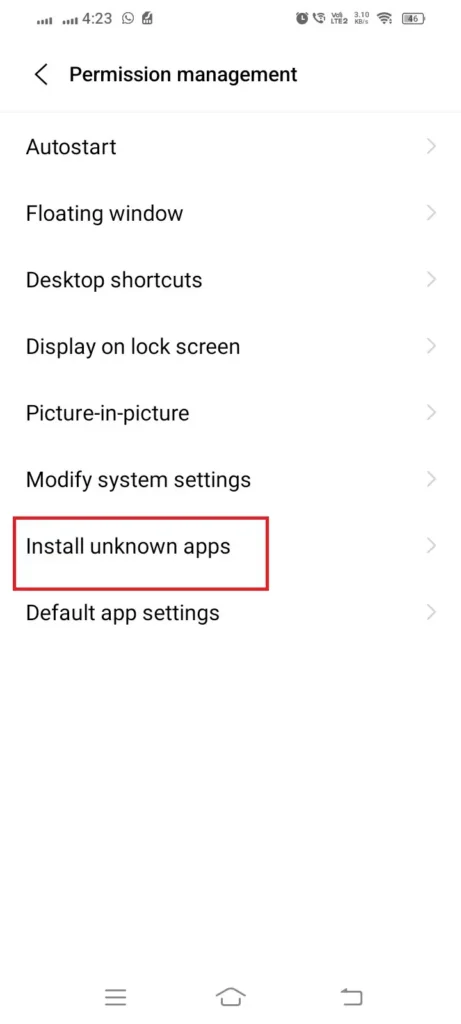
Step 4: Select Files by Google
Find Files by Google in the list and tap it.
Step 5: Enable APK Installation
Turn on Allow unknown apps to be installed for Files by Google.
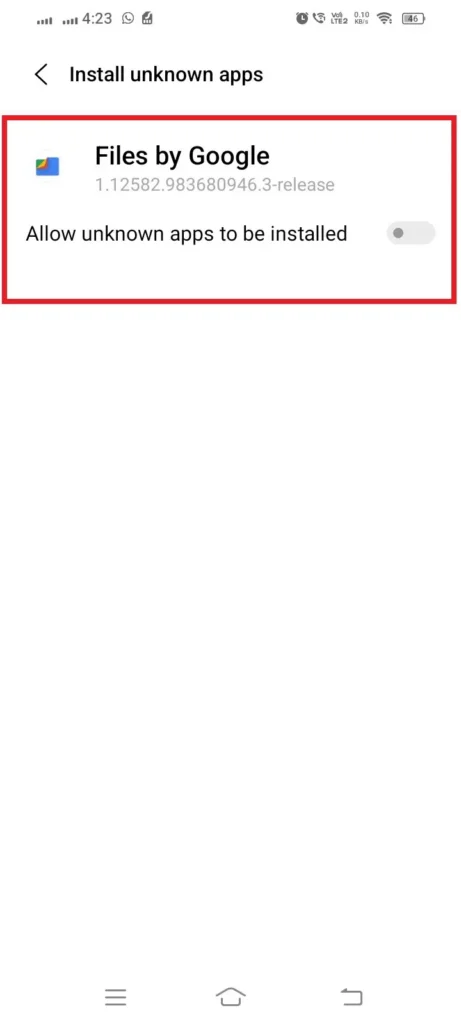
Files by Google can now open APK files for installation on the Vivo V2027.
How to Install an APK on Android itel Mobile
On the itel A70, the setting is located at:
Settings → App Management → Special App Access → Install Unknown Apps → Files by Google
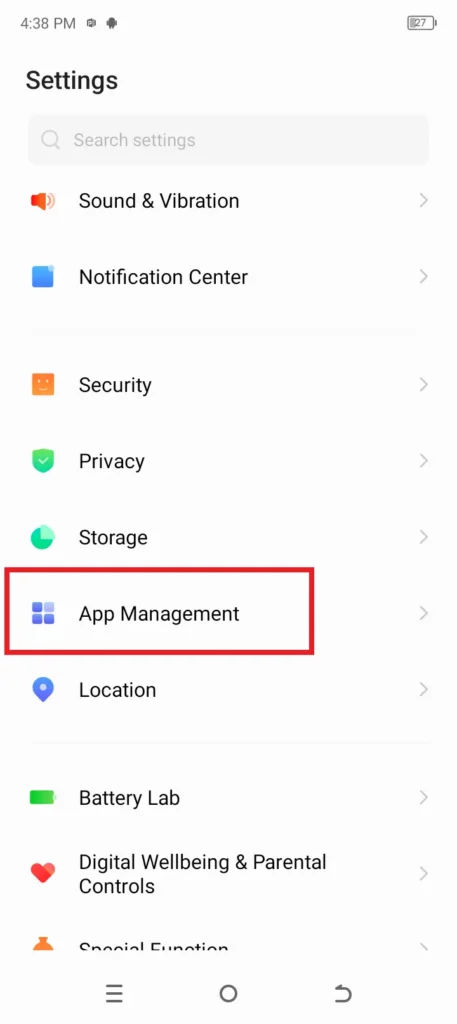
Step 1: Open App Management
Open Settings and tap App Management.
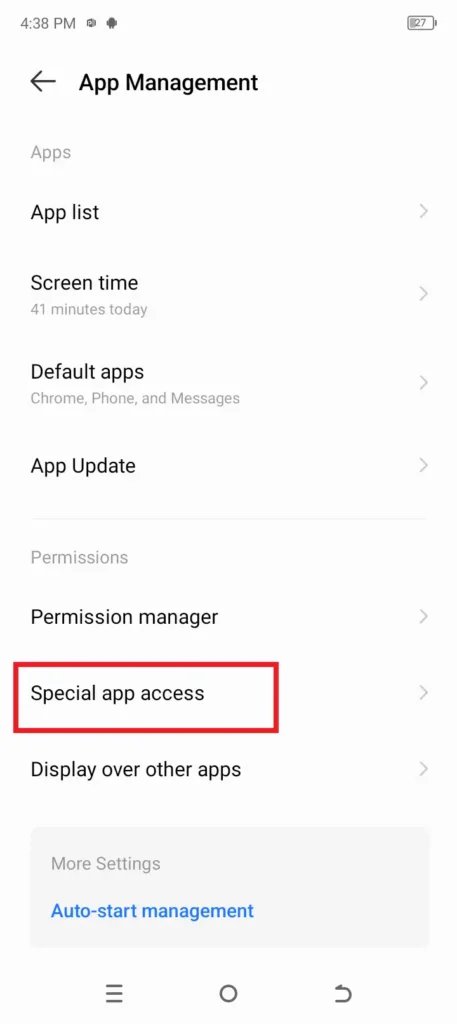
Step 2: Open Special App Access
Tap Special App Access.
Step 3: Open Install Unknown Apps
Tap Install Unknown Apps.
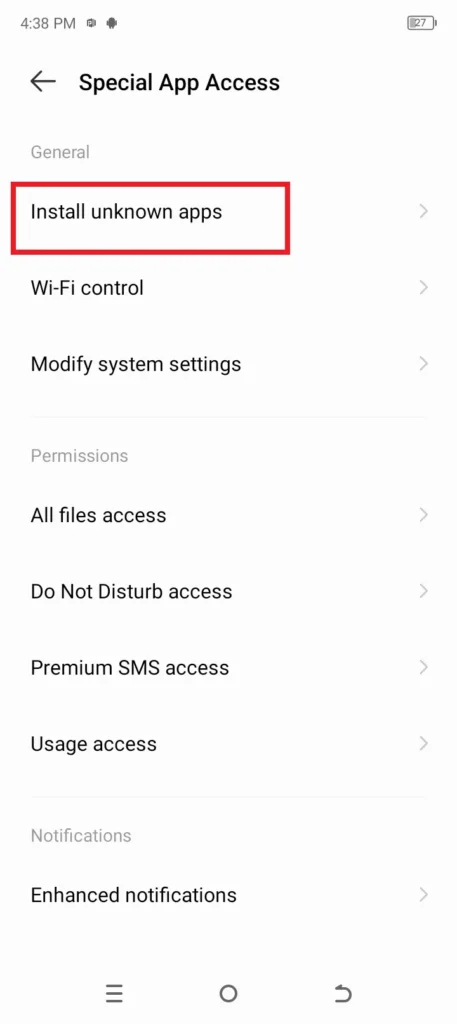
Step 4: Select Files by Google
Find Files by Google in the list and tap it. If the permission has not been enabled, it will show Not allowed.
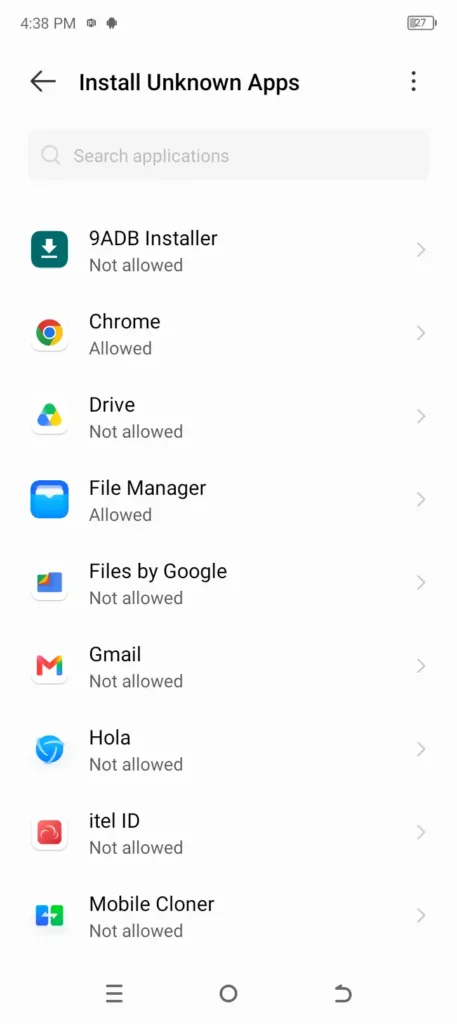
Step 5: Enable Allow From This Source
Turn on Allow from this source.
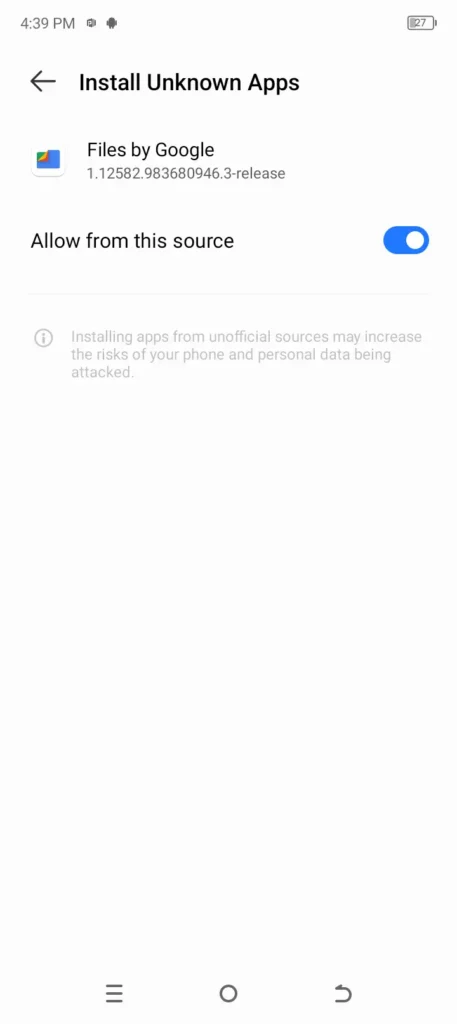
Files by Google can now open APK files for installation on the itel A70.
How to Install an APK on Android OPPO Mobile
On the OPPO A3, the path to Files by Google is:
Settings → Apps → Special app access → Modify system settings → Files by Google
Step 1: Open Apps
Open Settings on the OPPO A3 and tap Apps.
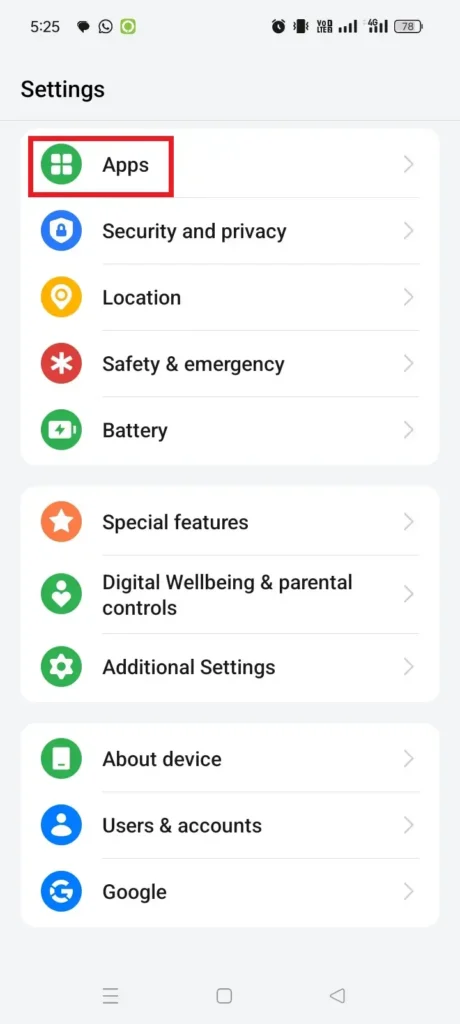
Step 2: Open Special App Access
Tap Special app access.
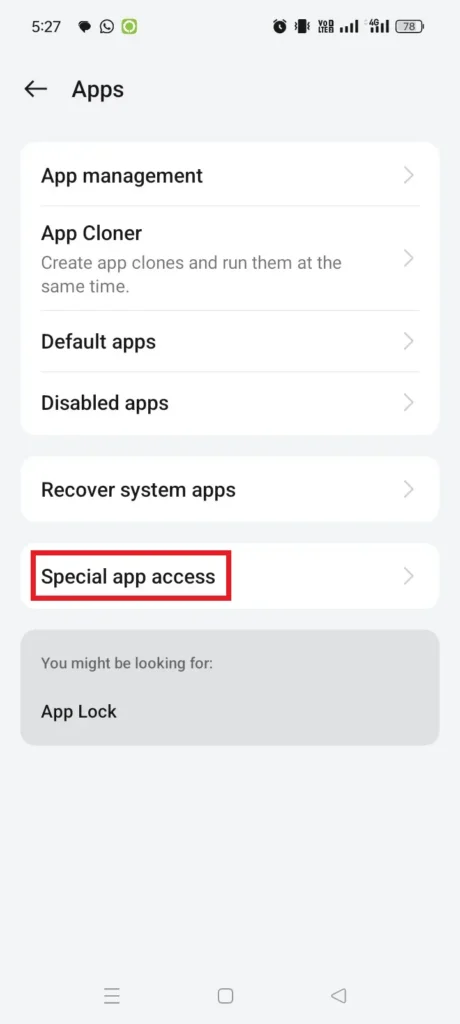
Step 3: Open Modify System Settings
Select Modify system settings.
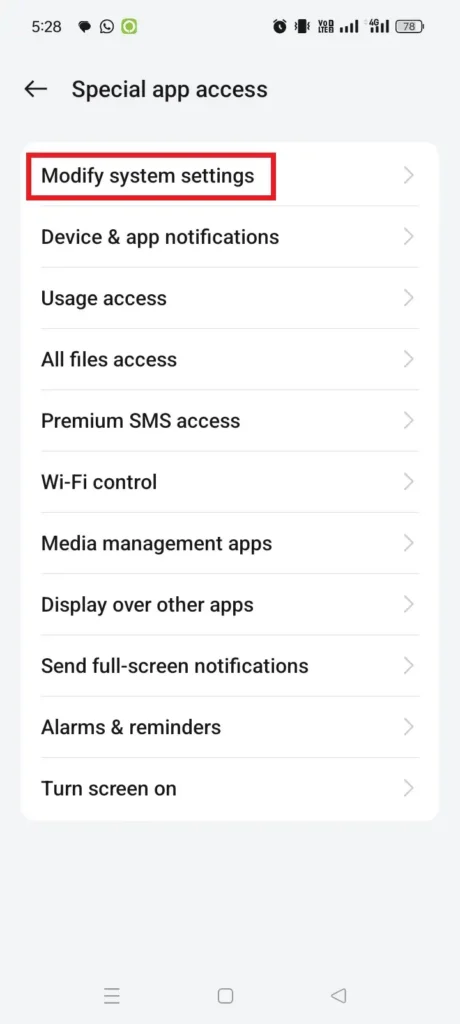
Step 4: Select Files by Google
Find Files by Google in the list and tap it.
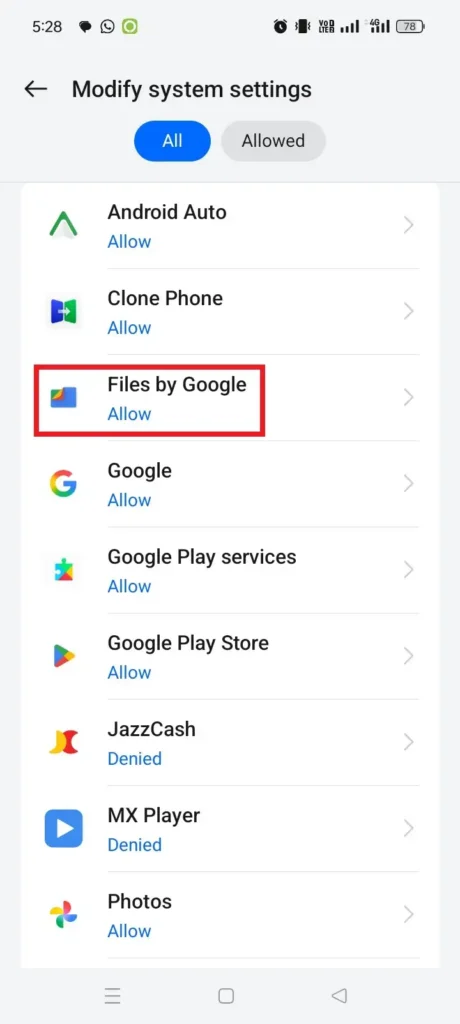
Step 5: Enable the Permission
Turn on the available permission for Files by Google.
How to Install an APK on Samsung Galaxy A33 5G
On the Samsung Galaxy A33 5G, the manual path is:
Settings → Security and privacy → Install unknown apps → My Files
Step 1: Open Security and Privacy
Open Settings and tap Security and privacy.
Step 2: Open Install Unknown Apps
Scroll down and tap Install unknown apps.
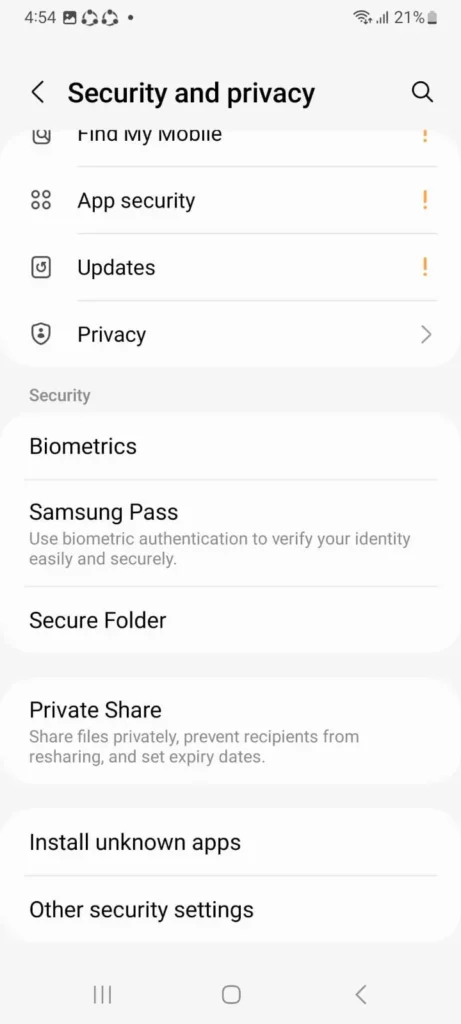
Step 3: Find My Files
Find My Files in the list.
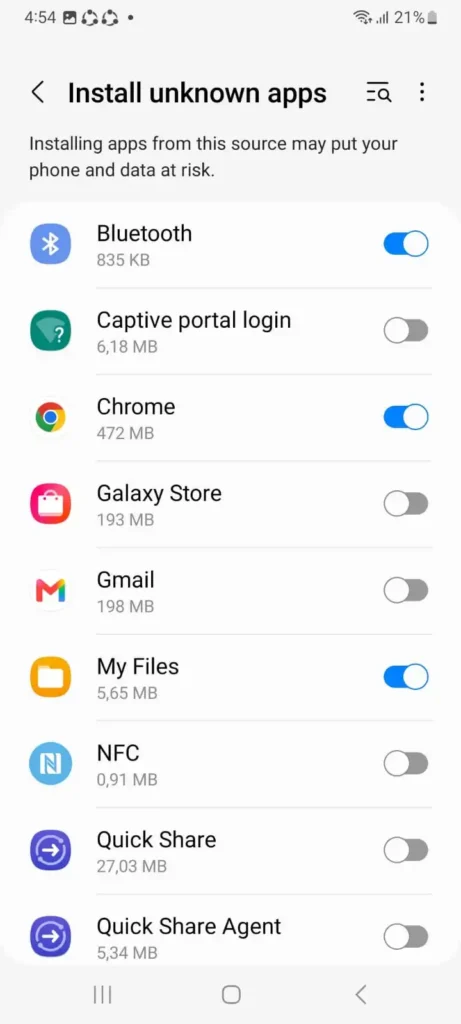
Step 4: Allow My Files to Install APKs
Turn on the switch next to My Files.
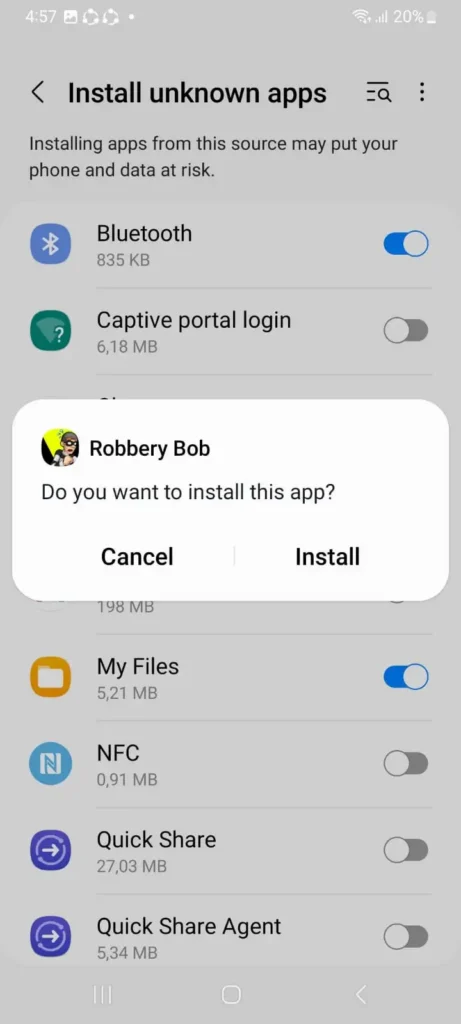
My Files can now open APK files for installation on the Galaxy A33 5G.
How to Install an APK on Samsung Galaxy A04
The Samsung Galaxy A04 uses a slightly different Settings path from the Galaxy A33 5G:
Settings → Security and privacy → More security settings → Install unknown apps → My Files
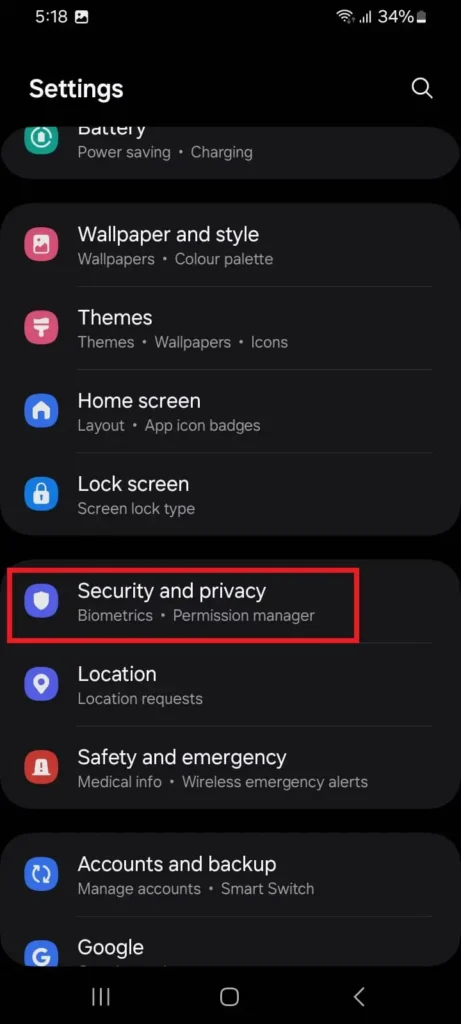
Step 1: Open Security and Privacy
Open Settings and tap Security and privacy.
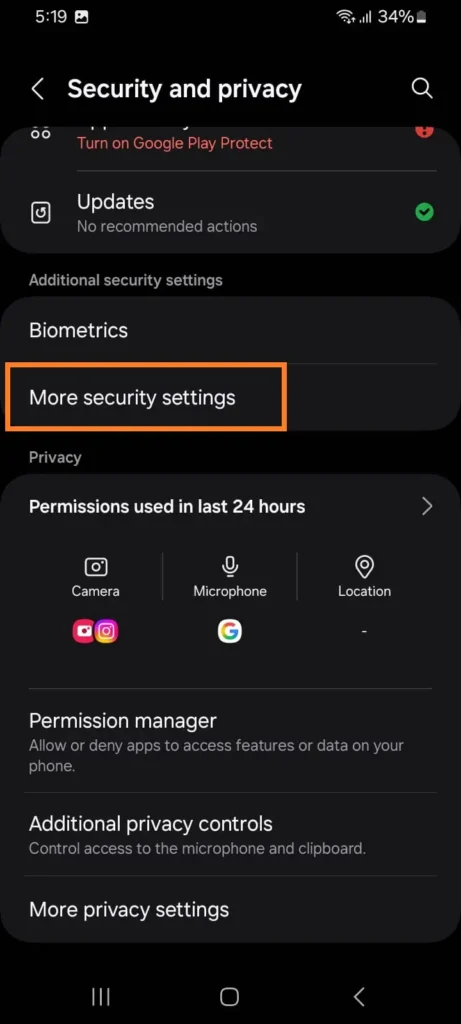
Step 2: Open More Security Settings
Under Additional security settings, tap More security settings.
Step 3: Open Install Unknown Apps
Tap Install unknown apps.
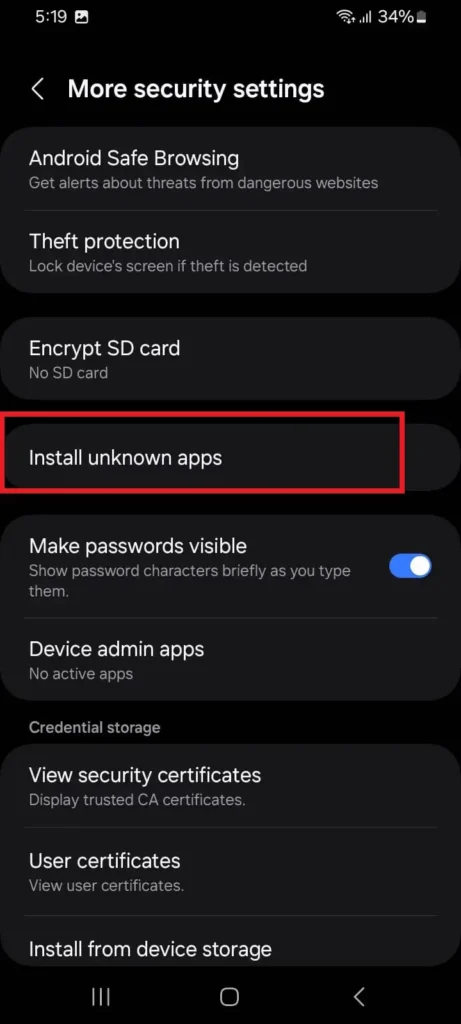
Step 4: Enable My Files
Find My Files in the list and turn on its switch.
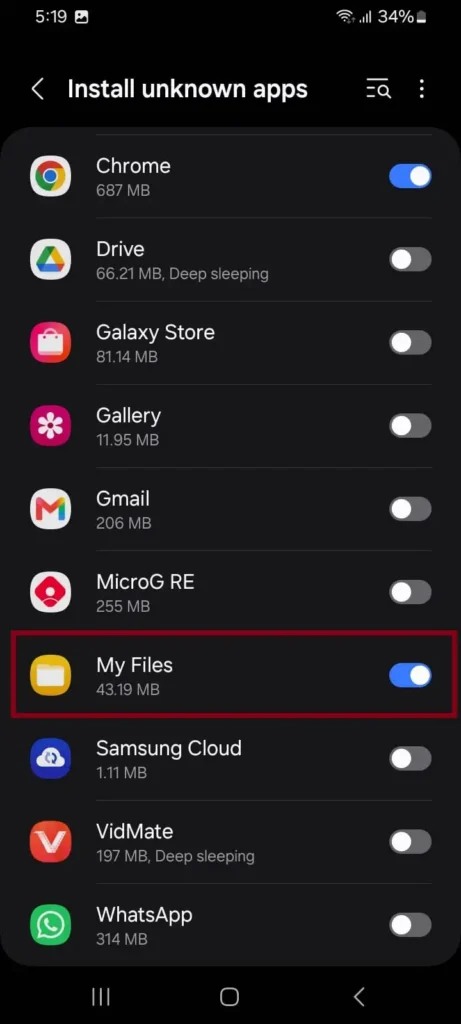
My Files can now open APK files for installation on the Galaxy A04.
FAQs
How do I install an APK directly from Google Chrome?
If you download an APK with Google Chrome and open it directly from Chrome, the installation source is Chrome. If Android blocks the installation, tap Settings, enable Allow from this source for Chrome, then return and continue the installation. You can also enable it manually by finding Chrome under your phone’s Install unknown apps settings
Can I install an APK received through SHAREit?
Yes. If you open an APK directly through SHAREit, SHAREit needs permission to install unknown apps. If you save the APK and later open it through Files by Google or another file manager, the file manager needs the permission instead of SHAREit.
Can I use Samsung My Files instead of Files by Google?
Yes. My Files can be used to open APK files on Samsung phones. Enable My Files under Install unknown apps, then open the APK through My Files. The exact Settings path can differ between Samsung models. For example, the paths on the Galaxy A33 5G and Galaxy A04 tested for this guide are different.
Can an APK installer app install APK files?
Yes. If you use a separate APK installer, Android may require you to enable Allow from this source for that installer. A separate APK installer is usually not required for a normal .apk file. Files by Google or your phone’s built-in file manager can open the APK using Android’s package installer.
Do I need to enable Install Unknown Apps for every app?
No. Enable the permission only for the app you use to open the APK. If you use Files by Google, for example, you do not also need to enable it for Chrome, SHAREit, Drive, Gmail, and other apps.
Is “Unknown Sources” the same as “Install unknown apps”?
They serve a similar purpose, but Android changed how the permission is managed. Older Android versions used a broader Unknown sources setting, while newer versions manage installation permission for individual source apps. This is why the Install unknown apps screen may contain separate entries for Chrome, Files by Google, My Files, SHAREit, Drive, and other apps.
Should I turn off “Allow from this source” after installing an APK?
You can. Turning it off does not uninstall an app that is already installed. It prevents that source app from initiating another APK installation until you enable the permission again.

Editor & Lead APK Tester
Muhammad Sufyan
Muhammad Sufyan leads APK testing at TestedMod. An Android gamer and Computer Science graduate, he tests MOD features on real phones and documents working features, restrictions, and installation problems. His background includes building an Android app and experimenting with game modifications.