APK Not Installing? How to Fix It on Android
Android can stop an APK installation before it starts or display an “App not installed” error at the end. An existing app, an unsupported Android version, or a damaged APK file can cause this. We test APK and MOD APK files on Android phones for installation and compatibility errors. Here are four issues to look for when an APK won’t install.
- Google Play Protect blocks the APK
- Install unknown apps is turned off
- An existing app causes a package conflict
- Cached data interferes with the installation.
Each problem needs a different check. This guide uses the errors, settings, and installation behavior we see on our test devices to show how to fix App not installed APK problems step by step. Where an error has more than one possible cause, we separate those causes rather than treating every failed APK installation as the same problem.
First, Check What Happens When You Open the APK
Before changing any settings, open the APK again and check where the installation stops. The message shown on the screen can point to the problem. For example, if Android says your phone is not allowed to install unknown apps from this source, the file manager or browser needs installation permission. A Google Play Protect warning is a different issue and needs to be checked separately.
If Android shows an “App not installed” error, check whether another version of the app is already installed. If there’s no clear error message, check your phone’s storage, Android version, and APK file.
How to Fix APK Not Installing on Android
Install Unknown Apps Is Turned Off
Android blocks APK installation when the app opening the file does not have permission to install apps from outside Google Play. This can happen with Files by Google, Chrome, Samsung My Files, or another app used to open the APK.
When we opened an APK through Files by Google without this permission enabled, Android showed:
“For your security, your phone currently isn’t allowed to install unknown apps from this source. You can change this in Settings.”
Tap Settings from this message. On the Install unknown apps screen, turn on Allow from this source for Files by Google. On some phones, the wording of this option is slightly different. Once we enabled the permission, the APK we had selected started installing automatically. We did not need to find and open the file again.
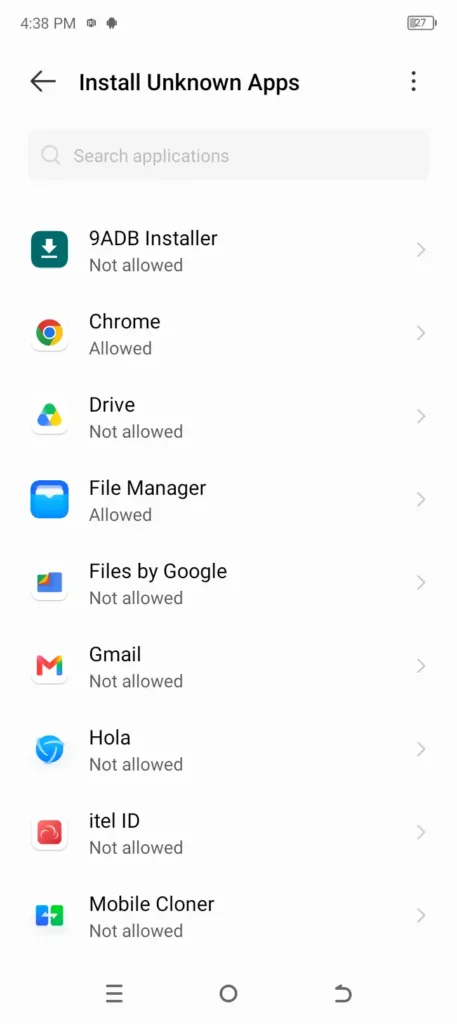
If you are opening the APK through another app, give the permission to that app instead. For example, an APK opened directly from Chrome needs permission for Chrome, not Files by Google. The location of Install unknown apps differs between Android phones. Our How to Install APK on Android guide covers the exact settings paths we tested on Samsung, Vivo, itel, and other devices.
Google Play Protect Is Blocking the APK
Google Play Protect can interrupt an APK installation and display a warning before the app is installed. This is different from the Install unknown apps permission above. In this case, Android has already allowed the source to open the APK, but Play Protect is warning about the app itself. The exact message can vary. Check what Play Protect shows before taking any action rather than assuming every warning has the same cause.
If Play Protect gives an option to Scan app, let the scan finish and check the result. If it identifies the APK as harmful, do not ignore the warning simply because the file is a MOD APK. For APKs that we test, we also check the file with available security scanners before installation. A modified APK can trigger warnings for different reasons, so a Play Protect block should not automatically be described as a false positive.
If Google Play Protect blocks the APK, don’t ignore the warning. You can scan the file with VirusTotal and check its permissions before deciding what to do. If the results raise security concerns, don’t install the APK.
Package Conflict With an Existing App
App not installed can show when another version of the same app is already on the phone. We commonly see this when testing a MOD APK while the original app, or a different MOD build, is already installed. Two apps can use the same package name but have different signing certificates. Android will not install one as an update over the other when their signatures do not match.
First, see if the app is already installed. Android won’t install another APK with the same package name if the signatures don’t match. In that case, back up your app data before uninstalling the old version. Then open the downloaded APK and try installing it again. If the installation works, the signature mismatch was the problem.
Clear the Cache and Try the APK Again
Sometimes an APK fails to install even when Install unknown apps is already enabled and there is no package conflict. If the APK won’t open through your file manager, clear the file manager’s cache. This may help with file-opening errors, but it won’t fix an incompatible APK or a package conflict.
Start with the app you are using to open the APK. For example, if you are installing through Files by Google, open its app settings and clear its cache.
The path on many Android phones is similar to:
Settings → Apps → Files by Google → Storage → Clear cache
The names of these menus can differ by phone. After clearing the cache, open the same APK file again and try to install it. Using the same file is useful here because it shows whether clearing the cache actually changed the result.
Do not confuse Clear cache with Clear storage/data. Clearing the cache removes temporary files, while clearing app data can reset the app and remove its saved settings.
What to Check If the APK Still Won’t Install
If the fixes above do not solve the APK not installing problem, the next step is to check the APK itself and whether it matches your phone.
Check the Android Version Required by the APK
An APK built for a newer Android version may not install on an older phone. Check the APK’s minimum Android version and compare it with the Android version running on your device. For example, if an APK requires Android 10 or later, it cannot be installed normally on a phone running Android 9.
Check the APK Architecture
Android apps can be built for different CPU architectures, including arm64-v8a, armeabi-v7a, x86, and x86_64. An APK made only for an unsupported architecture may fail to install on your device. Check the architecture of the APK and compare it with the architecture supported by your phone.
Make Sure There Is Enough Storage
APK installation requires free storage beyond the size of the downloaded file. Android needs space to unpack and install the app.
Check:
Settings → Storage
If the phone is almost full, free some space and try the same APK again.
Download the APK Again
An incomplete or damaged APK can also fail during installation. If the other checks look correct, delete the downloaded file and download a fresh copy. Compare the file size with the source if that information is available. If the newly downloaded copy installs while the previous one does not, the first file was likely incomplete or corrupted.
Check the File Format
Not every Android app download is a standard .apk file. You may also find formats such as XAPK, APKS, or split APK packages. These files cannot always be installed by tapping them in Files by Google like a normal APK. Check the file extension first and use the installation method required for that format.
FAQs
Can the same APK be installed twice on one Android phone?
Normally, no. Android identifies apps by their package name. Installing the same APK again does not create a second copy of the app. Some phones provide an App Clone/Dual Apps feature, but this is separate from installing the same APK twice. Two independently installed versions generally need different package names.
Can I install an older APK version over a newer version?
Android normally does not allow a straightforward downgrade over a newer installed version. If you try to install an older build, the installation may be rejected. In many cases, the newer version must be removed before the older APK can be installed. Check whether your app data is backed up before uninstalling the current version.
Why does the Install button not work when I tap it?
If the installation screen opens but the Install button does not respond, check whether another app is displaying something over the screen. Floating windows, screen filters, accessibility overlays, chat bubbles, and similar features can interfere with security-sensitive buttons on some Android versions.
Can I install an APK from an SD card?
Yes. An APK stored on an SD card can be installed if your phone can access the file. Open it through a supported file manager and follow Android’s installation process. You do not have to move every APK to internal storage simply because it was downloaded or copied to an SD card.
Does an APK need an internet connection to install?
A normal APK can usually be installed locally without an internet connection once the complete file is already on the phone. However, the app itself may require internet access after installation to download additional files, verify an account, or load online features.
Conclusion
An APK not installed is easier to troubleshoot when you follow the error shown on the phone rather than changing multiple settings at once. A blocked installation, an App not installed message, and a Google Play Protect warning point to different problems.
Start with the message Android gives you, apply the relevant fix, and test the same APK again. This makes it easier to confirm what stopped the installation and whether the change actually fixed it.

Editor & Lead APK Tester
Muhammad Sufyan
Muhammad Sufyan leads APK testing at TestedMod. An Android gamer and Computer Science graduate, he tests MOD features on real phones and documents working features, restrictions, and installation problems. His background includes building an Android app and experimenting with game modifications.